The Task Board
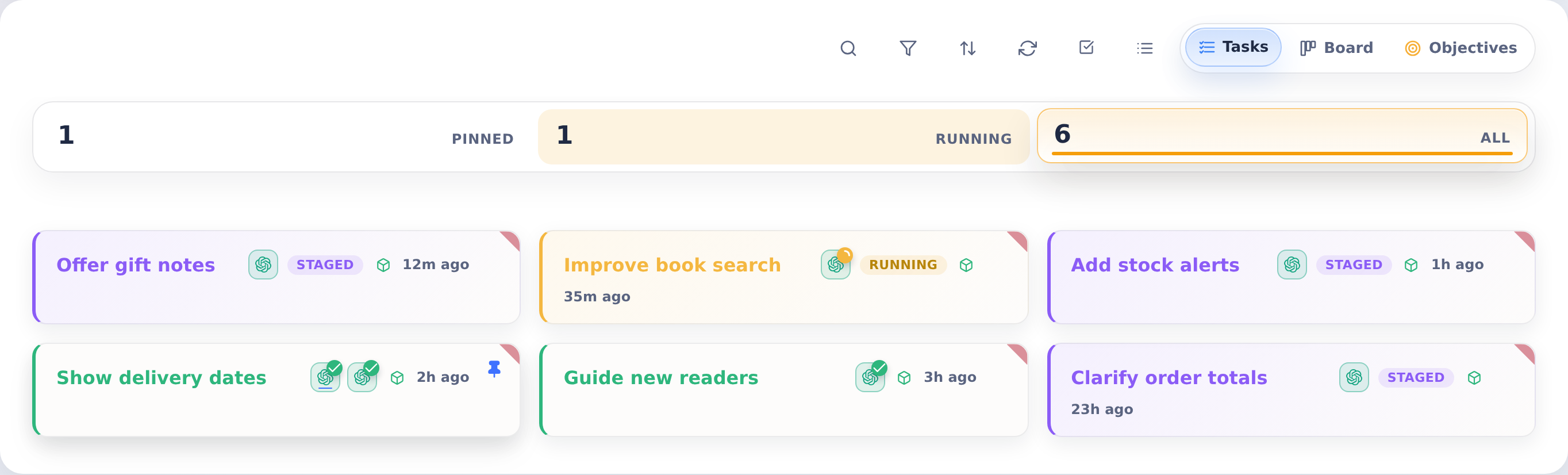
The task board is CoderFlow's home page. It lists your tasks and objectives, and it is where you search, filter, sort, and monitor work across all environments.
The board has three views, selectable from the tabs at the top:
- Tasks — task tiles grouped by status sections, with an All tab for paginated browsing
- Objectives — the hierarchical objective tree (see Objectives)
- Board — a swimlane view that groups tasks into drag-and-drop columns (see Board View below). This tab only appears once at least one environment has board lanes configured.
Searching Tasks
The search box filters the board as you type. Two kinds of terms can be freely mixed:
- Plain text — matches task names and instructions (case-insensitive; multiple words must all match)
field:valuetokens — filter by task detail fields
For example:
payroll created:>2026-06-01 createdby:lisa status:running project_id:"ACME 42"
Wrap values containing spaces in double quotes (library:"MY LIB"). A token that starts with a quote is treated as plain text, and unrecognized something: tokens fall back to free-text search, so pasting URLs works normally.
Built-in Search Fields
| Field | Matches | Notes |
|---|---|---|
created | Task creation date | YYYY-MM-DD, today, yesterday, or a relative age like 12h, 7d, 2w. Supports >, >=, <, <=; a bare value like created:7d means "within the last 7 days" |
createdby / creator | Task creator | User ID or a substring of the username or display name |
env / environment | Environment name | Exact match |
agent | Agent | claude, codex, gemini, bob, grok, or kimi |
status | Task status | objective, staged, running, completed, interrupted, failed, or approved |
jira | Linked Jira issue key | Substring match; offered only when the Jira integration is configured |
synced | Synced to IBM i | yes/no; offered only when an environment has IBM i sync enabled |
library | IBM i target library | Exact match; offered only when an environment has IBM i sync enabled |
deployed | Profound UI deploy state | yes/no; offered only when an environment has Profound UI deploy enabled |
Custom task fields are searchable by their key. Set-list fields match exactly, text fields match substrings, and number and date fields support the same >, >=, <, <= operators as created.
The Field-Filter Helper
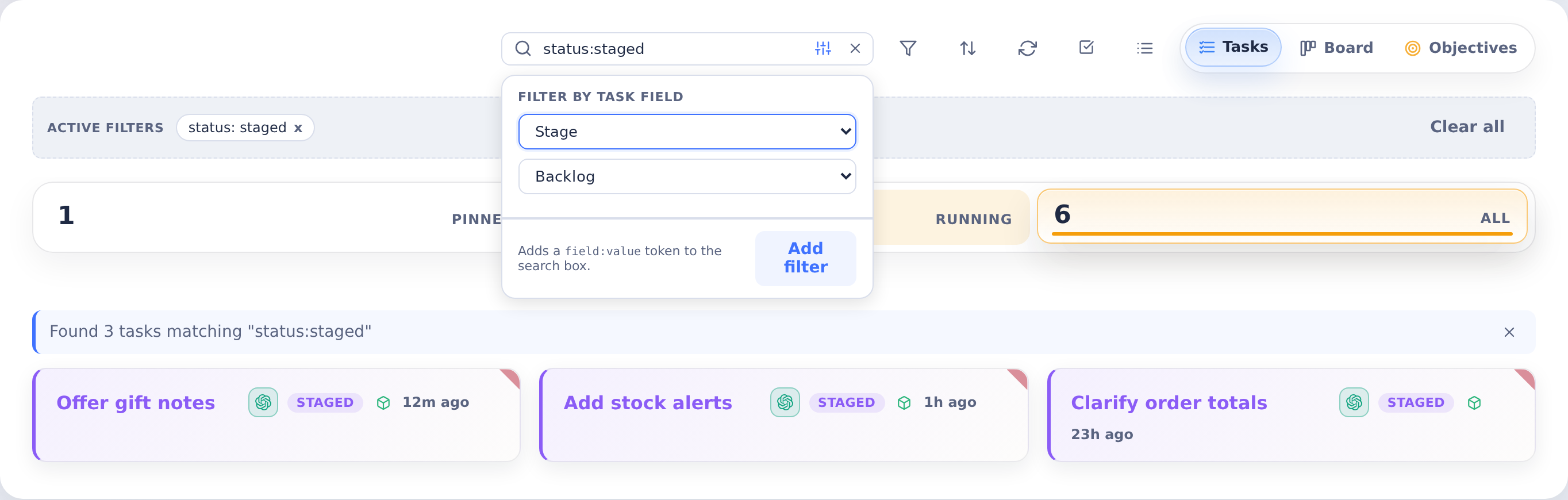
If you'd rather not type tokens by hand, click the Filter by task field button next to the search box. It opens a small dialog where you pick a field, a comparison (for date and number fields), and a value, then click Add filter to insert the token into the search box. Integration-backed fields (jira, synced, library, deployed) only appear in the dialog when the corresponding integration is actually configured.
Recognized field:value tokens render as removable chips in an Active filters row below the search box, so you can clear individual filters with one click.
Sorting
The sort button in the board header (Tasks view) controls the order of task tiles:
- Newest first
- Oldest first
- Recently active (default)
- Least recently active
- Name A–Z / Name Z–A
- Status
- Environment
Date sections follow the selected sort: Recently active groups tasks by activity date, while Newest first and Oldest first use creation date. The time on each tile matches the sort: under the activity sorts it shows when the task was last active, otherwise when it was created. Hover over the time to see both dates.
Activity means work on the task, such as an agent turn, a follow-up, or a restart, so resuming an older task brings it into a recent date section. Pinning, sharing, regrouping, marking a winner or loser, and opening a terminal don't count as activity.
Your choice persists in the browser across sessions. When a non-default sort is active, the button highlights and shows the current sort name. For task groups, the group sorts by its primary task, and activity-based sorts consider activity from any variant in the group.
Task Tile Details
Each task tile has a detail area, also shown in the tile's hover popup. By default it shows the prompt the task started with, which is not always what you want to see on a task that has run for a while.
Open Profile Settings and set Task Tile Details to choose what appears there:
- Original prompt (default) — The instructions the task was created with
- Last prompt — The most recent follow-up sent to the agent. Rewinding a task discards follow-ups, and this respects that, so it shows the last prompt still in effect rather than one that was rewound away
- Last response — The agent's most recent reply, which keeps updating while the task is still running
Tiles fall back to the prompt when the chosen source has nothing to show yet — a task that has not responded, or one with no follow-ups.
The setting is stored with your profile, so it follows you to other browsers, and it applies only to your own view of the board.
Container Status Badges
Task tiles show a small container badge indicating whether the task's container is currently running:
- Green — container running: follow-ups, terminal sessions, and the app server are available
- Grey — container stopped: start it from the task page to keep working
- No badge — the container has been removed or its state is unknown
Badges update live as containers start and stop — no page refresh needed. On group tiles, the badge tracks the selected variant, and its tooltip also summarizes how many of the group's containers are up.
Board View
The Board view arranges tasks into vertical swimlanes and lets you move a task between lanes by dragging its tile. Lanes are driven by a Set list custom task field that the environment designates as its board lane field — the field's options become the columns, and dropping a tile into a lane sets that field's value on the task.
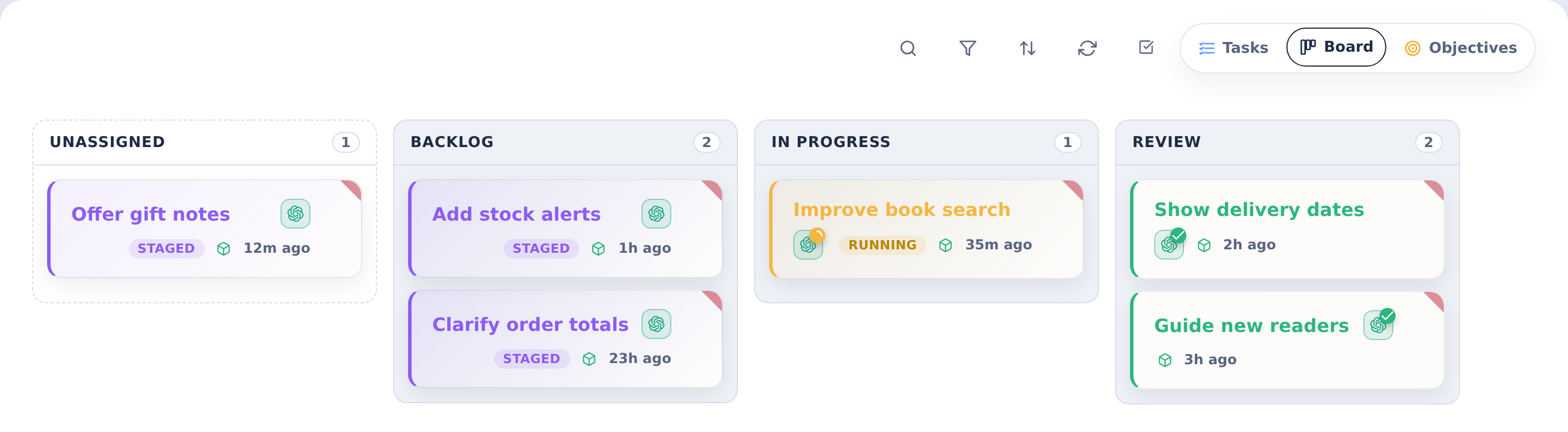
Here, Stage has three configured values: Backlog, In Progress, and Review. Unassigned collects tasks without a Stage value. The status badge on each tile shows whether the agent is staged, running, or finished; moving a tile between lanes changes its Stage, not its execution status.
Setting Up Lanes
Board lanes require the environments:manage permission to configure. There are two paths:
- One-click setup — with no lanes configured anywhere, the Board tab area shows a Set up board lanes prompt. With a single environment (or the board filtered to one), click Create default lanes to create a Stage field with the lanes Backlog, In Progress, Review, and Done. The same Set up board lanes button is available in the environment's Custom Task Fields card.
- Manual setup — create (or edit) a Set list custom field in Environment Management and check Use as board lanes. Only one field per environment can be the lane field.
The Board tab appears automatically once any environment has a lane field, and hides again if all lane designations are removed.
Working the Board
- Drag a tile to another lane to set its lane field value; the change syncs live to other open boards.
- The Unassigned lane (always first) collects tasks with no value for the lane field. Dragging a tile there clears the value.
- Tasks from environments without a lane field appear in Unassigned with a dashed border and can't be dragged.
- If a task's stored value is no longer in the field's option list, it appears in a read-only archived lane — you can drag tasks out of it, but not into it.
- When the board spans multiple environments, lanes with the same label are merged into a single column.
- The environment, status, and agent filters, the search box, and the sort control all apply to the board. Lanes show a window of the most recent matching tasks (up to 200); a note appears when older tasks are omitted — narrow the filters or search to find them.
- The board scrolls horizontally when lanes overflow: use the scrollbar beneath the lanes, the mouse wheel, or drag a tile toward the left or right edge to auto-scroll.