Docs Hosting
CoderFlow can publish a documentation folder from an environment repository as a static docs site served by the CoderFlow server. The site gets a stable URL, a navigation sidebar generated from the folder structure, and built-in full-text search. This gives application help links and customer documentation a permanent home without a separate static site or file host.
Publishing is an explicit action: you edit docs in the repository as usual, and the hosted site updates when you run Publish Docs (or when an automation publishes on a schedule).
Requirements
- An environment repository connected to a Git Provider, so the publish task can clone the docs branch
- A folder of Markdown files committed to that repository
- Permission to manage the environment to change the settings, and the same permission as running deployments to publish
Enable Docs Hosting
- Open Environments and select an environment.
- Open the Repositories tab and select a repository.
- In Docs Hosting, turn on Host Docs.
- Set the Docs Folder, such as
docsordocs/user, relative to the repository root. Only this folder is ever published. - Optionally set a Docs Branch. It defaults to the repository branch.
- Choose Who Can View:
- Signed-in CoderFlow users requires a CoderFlow session or a valid API key.
- Anyone (public, no sign-in) serves the docs to anyone who can reach the server. Choose this for end users of your application, and only for content that is safe to share.
- Save the environment. The Docs URL row shows the stable address with Copy and Open actions.
Check Docs Branch separately from the repository's Branch, which controls the default checkout for tasks. For example, a repository can use main for tasks and docs for documentation. Leave Docs Branch blank when both should use the repository branch. Saving these settings does not publish the site; use Publish Docs when the content is ready.
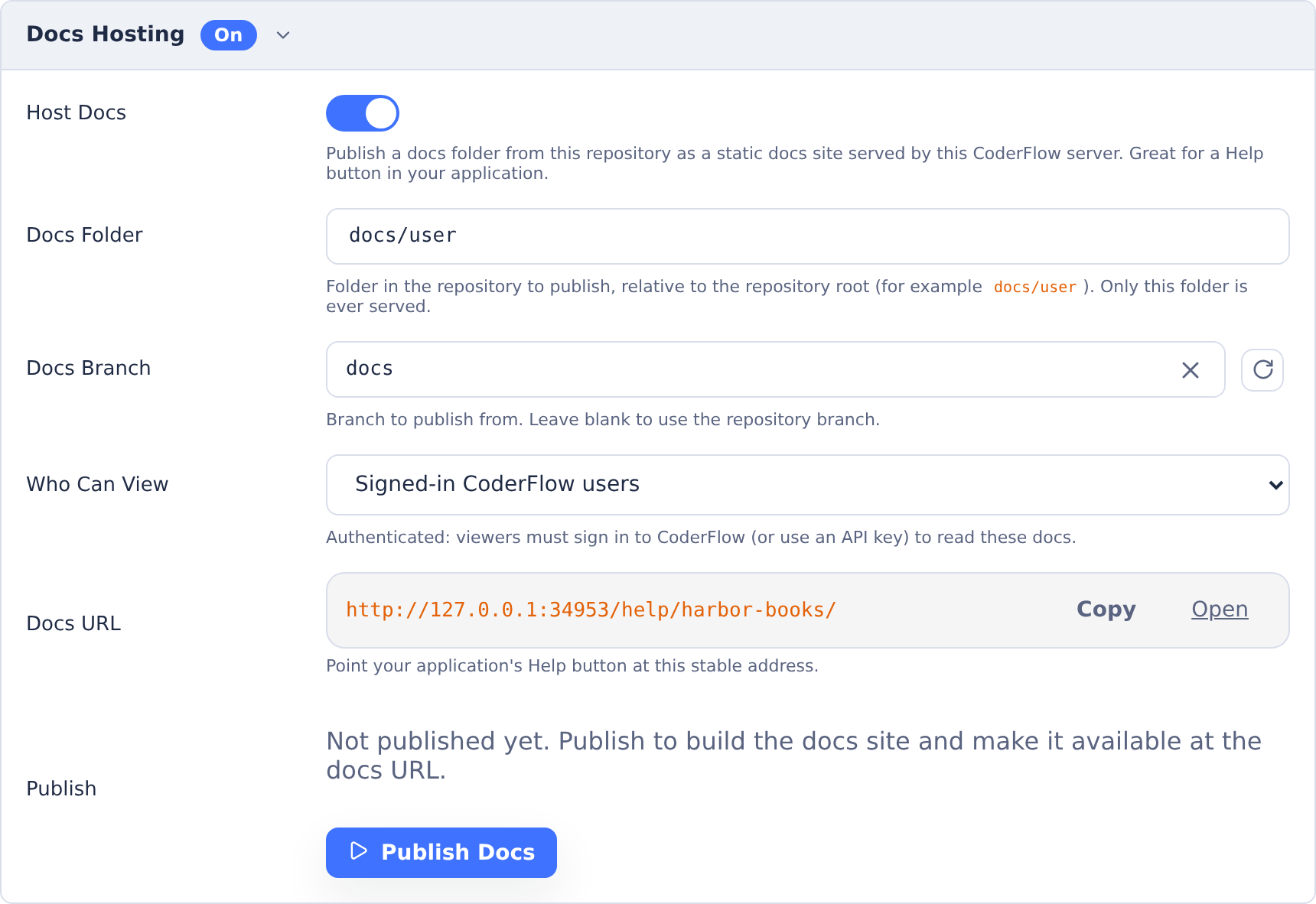
Here, tasks use main while Docs Hosting uses docs. The Docs URL uses your CoderFlow server address.
The docs URL has this form:
https://your-coderflow-server/help/<repository>/
<repository> is the short repository name from its clone URL. For example, https://github.com/acme/handbook.git publishes at /help/handbook/. The URL is customer-facing and carries no environment name. Repository names are a server-wide namespace: only one environment can host docs for a given repository name, and CoderFlow blocks conflicting configurations at save and at publish.
Publishing
Click Publish Docs in the repository's Docs Hosting section, or use Publish Docs in the home page Quick Actions menu (shown for environments with docs hosting configured). Each publish runs as a CoderFlow task: it clones the docs branch in a container, builds the static site, and the server swaps the new build live atomically.
- The Docs Hosting section shows the publish status: the running publish task, or the published commit, branch, and time, with a link to the publish task.
- A failed publish keeps the previously published site serving; the error and a link to the failed task log are shown.
- Publishing when the published docs already match the branch head completes without a rebuild and reports the docs as up to date. A Republish anyway link forces a rebuild.
- When a CoderFlow upgrade updates the bundled docs theme, the section prompts to publish again to pick it up.
Until the first successful publish, the docs URL shows a "Docs not published yet" page.
After a publish completes, changes are visible on the next page load. Pages are served without caching; site assets are content-hashed and cached long-term.
Publishing on a Schedule
Automations support a Publish docs run target. A scheduled automation runs the same publish as the button; if the published docs already match the branch head, the run completes without creating a task, so a frequent schedule on a quiet branch costs almost nothing.
Writing Docs
The published site is built with Docusaurus:
.mdfiles render as tolerant CommonMark, so AI-generated Markdown with bare<tags>or{braces}renders as text instead of failing..mdxfiles get full MDX parsing.- The sidebar is generated from the folder structure. Use front matter like
sidebar_positionandsidebar_labelto control ordering and labels. - Relative links between pages and to images work. Broken links produce build warnings, not failures.
- Full-text search is built in and runs entirely in the browser; no external search service is involved.
The docs folder must be committed to the branch. Untracked or gitignored files are never published.
Configuration File
The UI stores the settings in the repository entry inside the environment's environment.json file:
{
  "repos": [
    {
      "name": "handbook",
      "url": "https://github.com/acme/handbook.git",
      "branch": "main",
      "docs": {
        "enabled": true,
        "path": "docs/user",
        "branch": "main",
        "access": "public"
      }
    }
  ]
}
The docs fields are:
enabledturns hosting on or off. Turning off Host Docs in the UI keeps the block withenabled: falseso the settings are preserved.pathis required. It is the only repository folder that is published.branchis optional. It defaults to the repository's configured branch.accessispublicorauthenticated. It defaults toauthenticated.
Security
- Only the configured docs folder is built and published. Requests with path traversal, absolute paths, or other unsafe segments are rejected.
- Public docs are served inside a restrictive content security policy sandbox, so published content cannot act on the CoderFlow application's origin (for example, it cannot read CoderFlow cookies or call CoderFlow APIs as the viewer).
publicmeans no CoderFlow login is required. Do not publish secrets, internal procedures, or customer data from a public docs folder.- Authenticated docs accept a signed-in browser session or an API key, so an application can also fetch docs server-side on behalf of signed-in users.
- Requests for unknown repositories return an identical 404 whether or not the repository exists, so the docs URL space does not reveal repository names.